8 min read
How to customize your careers page with code or AI
Make your careers page look like the rest of your website. Edit its code in Emploist with a live preview, or let an AI assistant like Claude do it for you.
Navaneeth CT
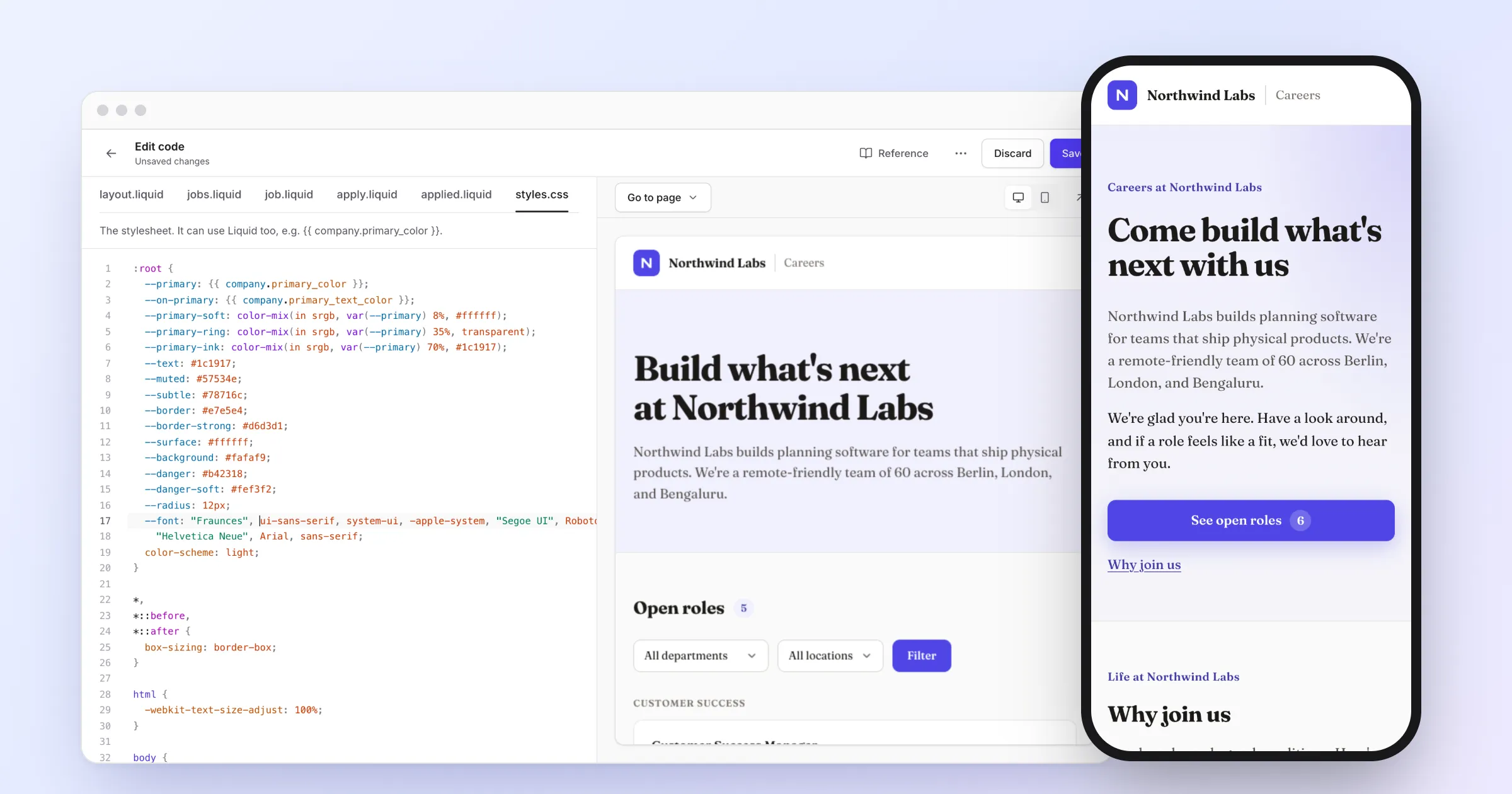
Your careers page is often the first real look a candidate gets at your company. When it looks like the rest of your website, with the same fonts, colors, and voice, it feels like part of your brand rather than a page from a hiring tool.
Every company on Emploist gets a careers page that’s ready on day one, with its logo and color. When you want more than that, you can change everything about how it looks by editing its code. That sounds technical, but you don’t need to be a developer. This guide shows two ways to do it:
- Edit the code in Emploist. Good for small changes, like a new headline or font. You see each change in a live preview as you type.
- Let an AI assistant do it. Good for bigger changes, like a new section. You download the code, describe what you want in plain words, and upload what the assistant sends back.
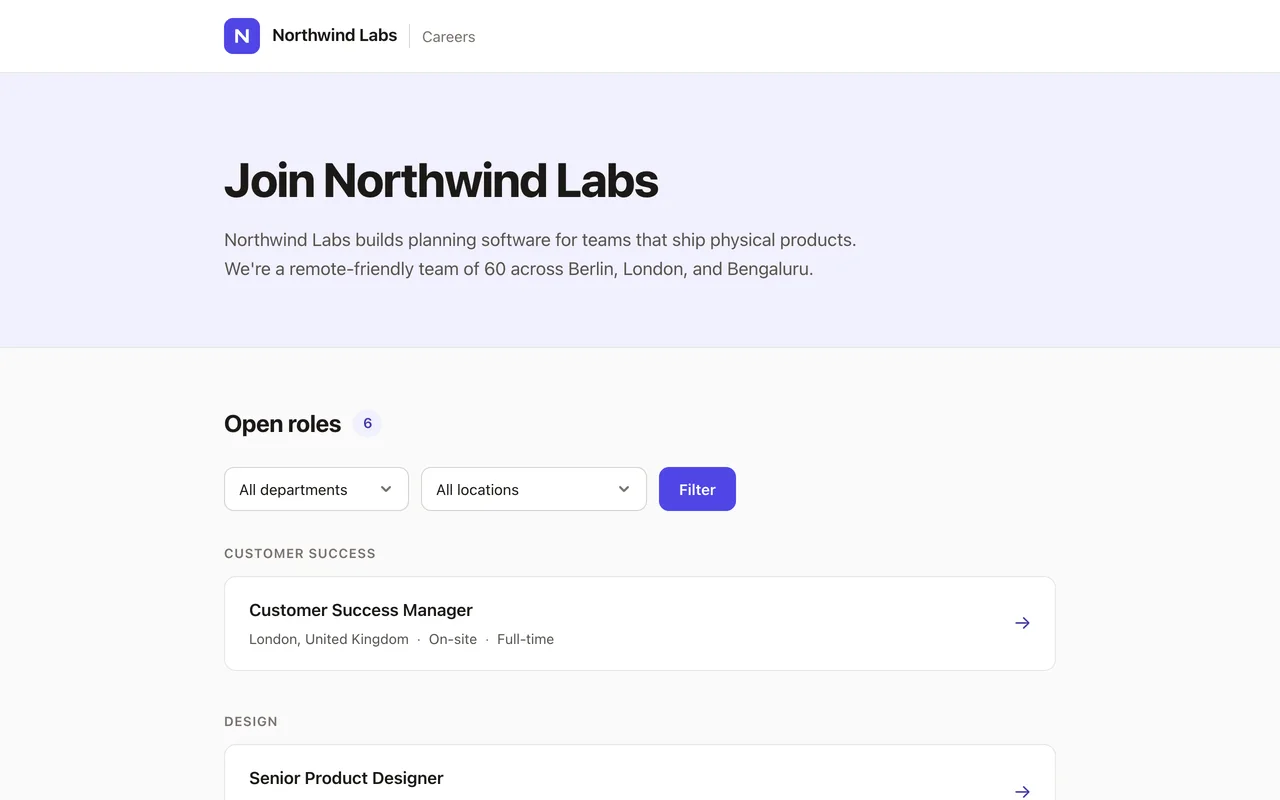
We’ll use Northwind Labs, a sample company, to show both. Here’s its careers page before we start.
What you can change
Your careers page is built from six files. Each one is a small text file you can open and edit:
| File | What it controls |
|---|---|
layout.liquid |
The frame around every page: the header, the footer, and what loads on every page, like fonts |
jobs.liquid |
The main page, with your introduction and the list of open roles |
job.liquid |
A single job’s page |
apply.liquid |
The application form |
applied.liquid |
The thank-you page candidates see after applying |
styles.css |
How everything looks: colors, fonts, sizes, and spacing |
The files use three simple languages. HTML says what’s on the page, like headings and buttons. CSS says how it looks. Liquid adds placeholders, like {{ company.name }}, which Emploist replaces with your company’s name, your jobs, and other details when a candidate opens the page.
You can’t break your careers page by trying things out:
- Nothing changes for candidates until you click Save.
- Emploist checks your code before saving it, and tells you what to fix if something is wrong.
- You can go back to the default design at any time.
To get started, sign in as an admin and open Careers page in the sidebar. The Design tab has your page’s color and its code. If all you need is your brand color, pick it under Primary color and you’re done. No code needed.
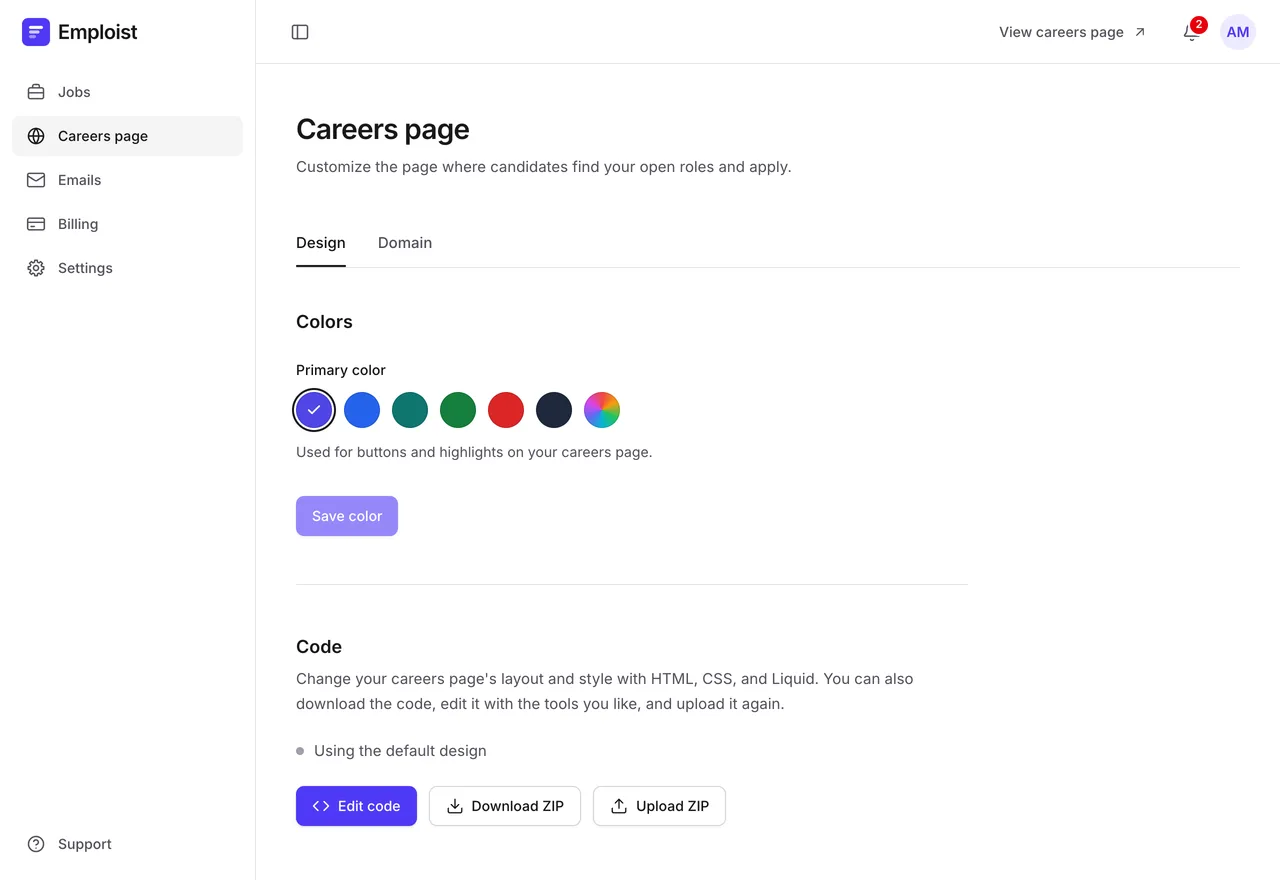
Option 1: Edit the code in Emploist
Open the editor
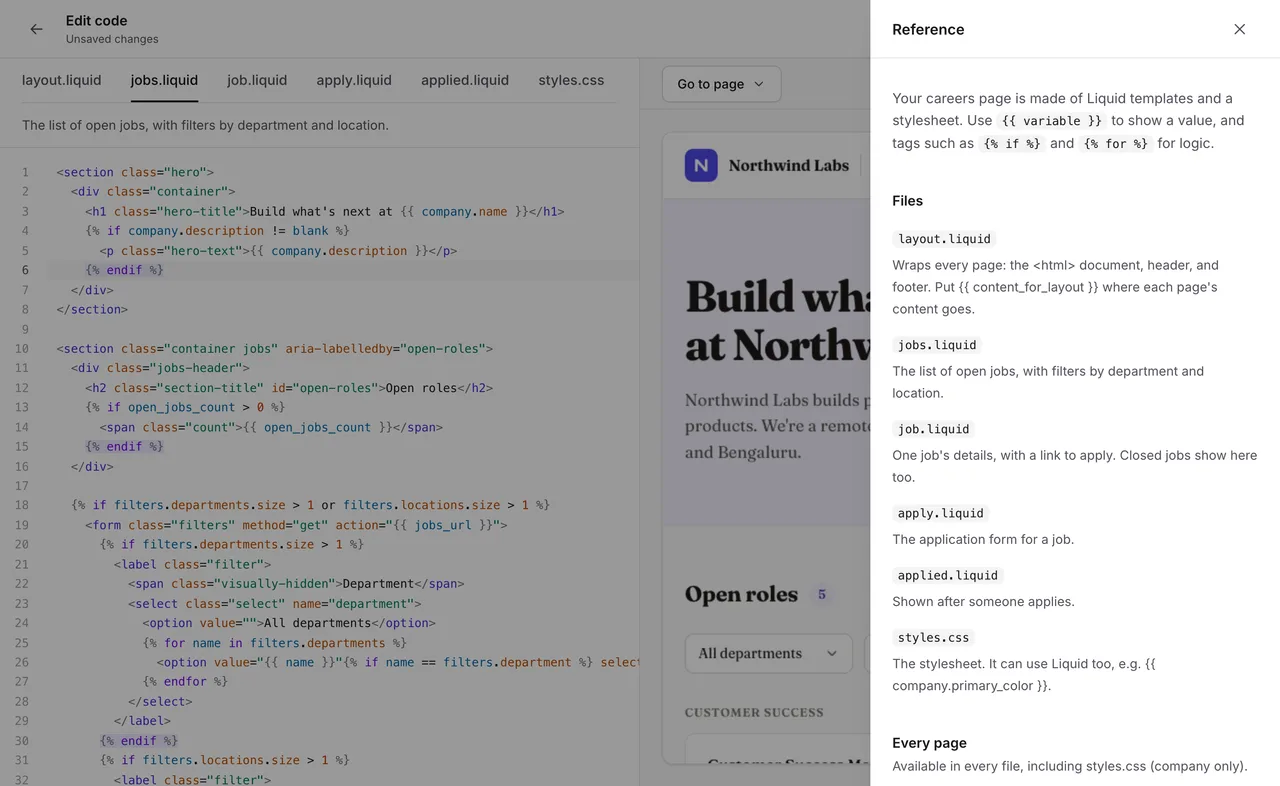
Click Edit code. Your page’s code is on the left, with a tab for each file and a short note on what the file is for. On the right is a live preview of your careers page, filled with sample jobs.
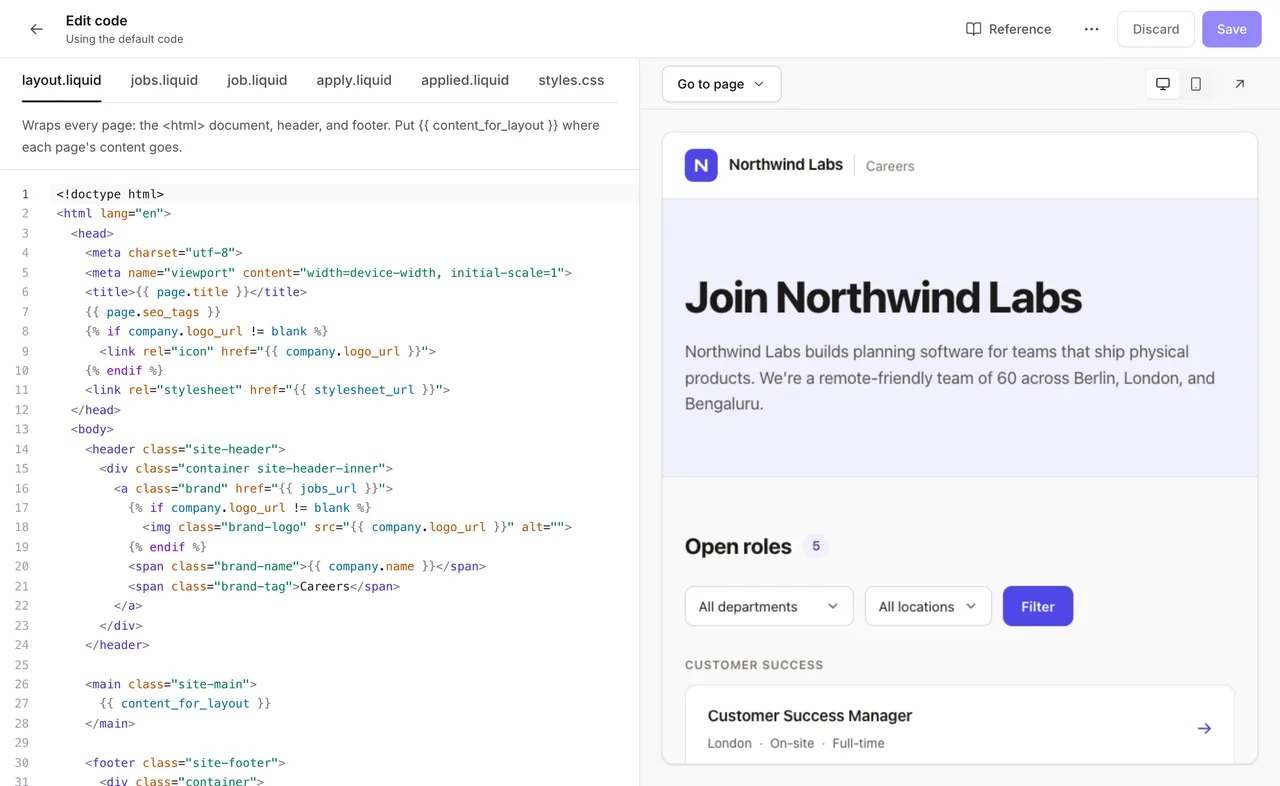
Above the preview, Go to page switches between every page candidates can see: the list of jobs, a job, the application form, the thank-you page, a closed job, and “Page not found”. Clicking a file’s tab also shows the page it controls.
Change the headline
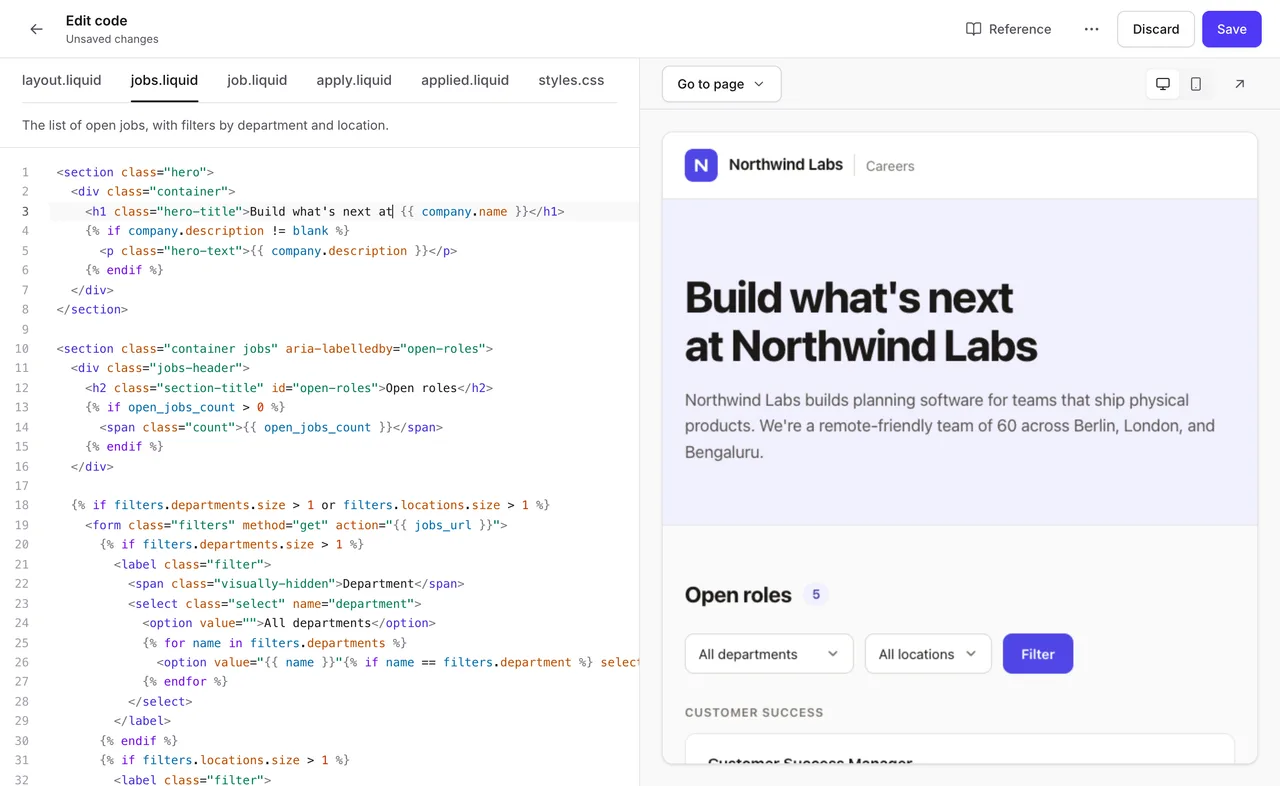
Click the jobs.liquid tab. Line 3 holds the big headline at the top of the page:
<h1 class="hero-title">Join {{ company.name }}</h1>Change the word “Join” to “Build what’s next at”. Leave {{ company.name }} as it is: Emploist puts your company’s name there. A moment after you stop typing, the preview shows the new headline.
Use your own font
Changing the font takes two small edits. We’ll use Fraunces, a free font from Google Fonts.
-
Load the font. On Google Fonts, open the font, click Get font, then Get embed code, and copy the
<link>line that containsfonts.googleapis.com/css2. Inlayout.liquid, paste it on a new line just above the line that containsstylesheet_url:<link rel="stylesheet" href="https://fonts.googleapis.com/css2?family=Fraunces:opsz,wght@9..144,100..900&display=swap"> -
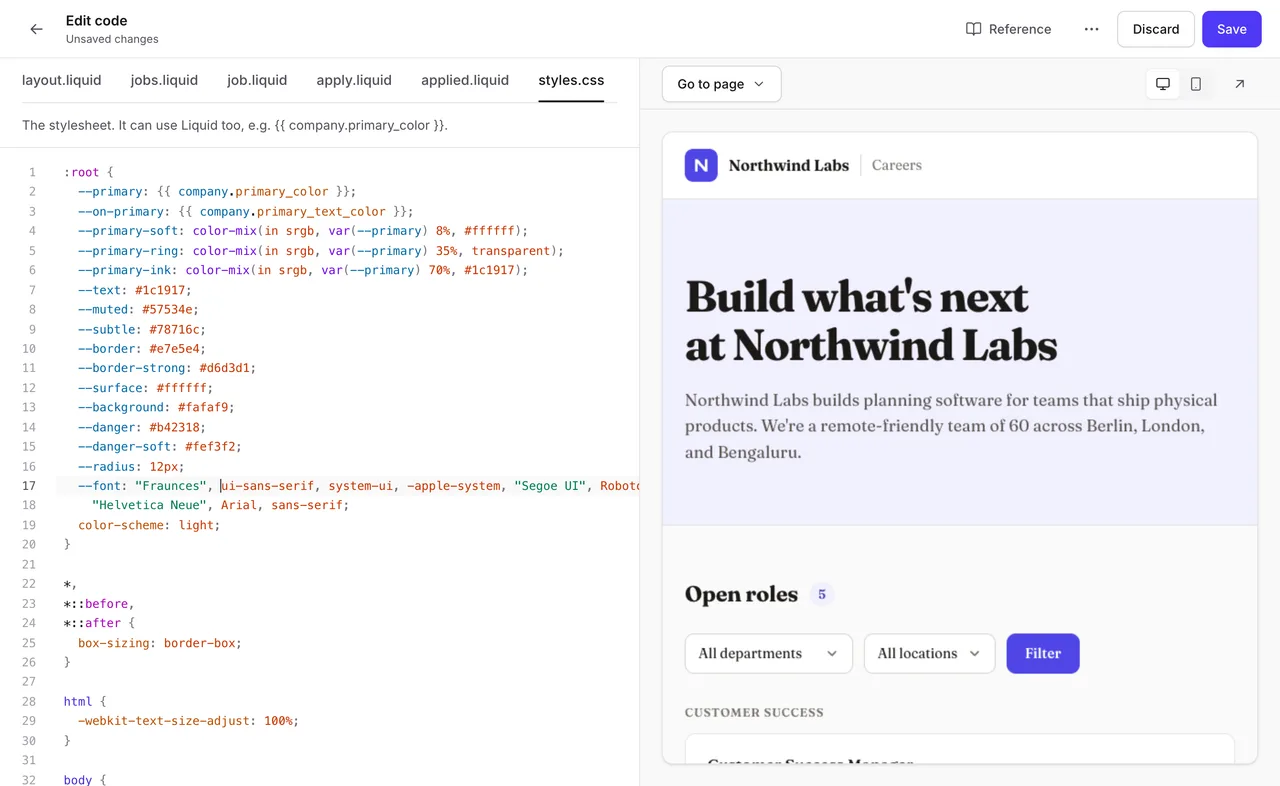
Use it. In
styles.css, find the line near the top that starts with--font:, and put the font’s name in quotes at the start of the list, followed by a comma:--font: "Fraunces", ui-sans-serif, system-ui, -apple-system, "Segoe UI", Roboto,The other fonts in the list are backups, in case a browser can’t load yours.
Check it on a phone
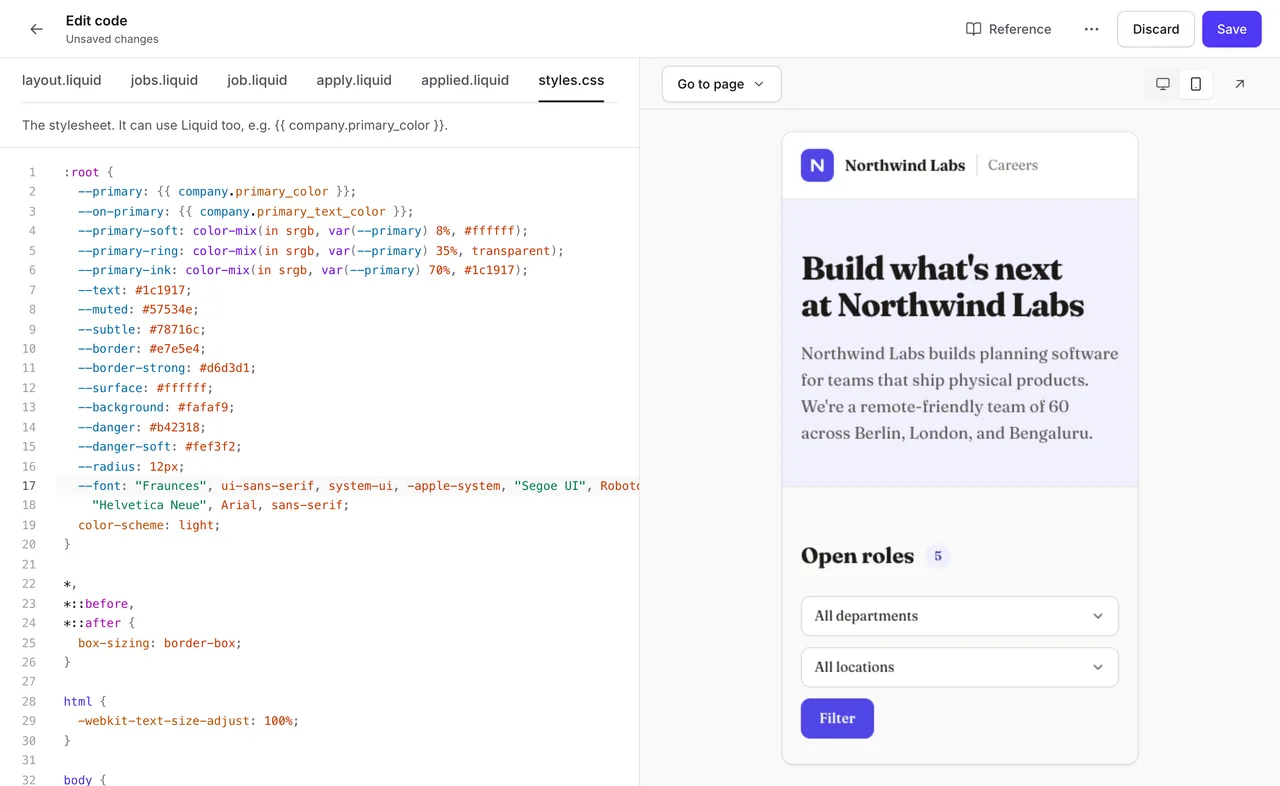
Many candidates will open your careers page on their phone. Click the phone icon above the preview to see the page at a phone’s size.
Fix mistakes before they go live
If a change breaks something, Emploist tells you right away. The file’s tab gets a red mark, the preview shows what went wrong instead of the page, and a list under the code says what’s wrong and on which line. Click a problem to jump to it. Most problems are a typo or a missing closing tag, and undoing your last change (Cmd+Z on a Mac, Ctrl+Z on Windows) usually fixes it.
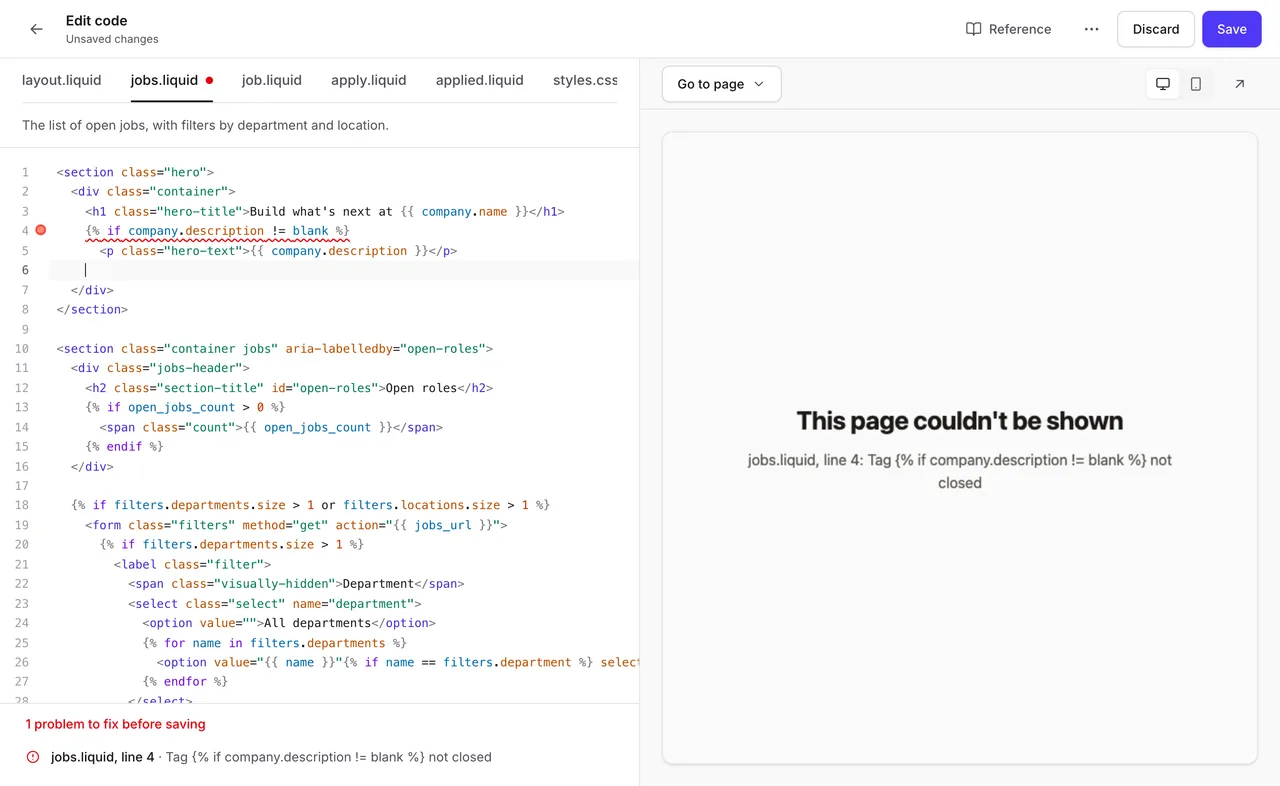
You can’t save while there are problems, so candidates never see a broken page.
Look up what you can use
Click Reference at the top of the editor to see every placeholder you can use, such as a job’s location or your company’s description, with a note on what each one shows.
Save your changes
When you’re happy with the preview, click Save. Your careers page updates for candidates right away.
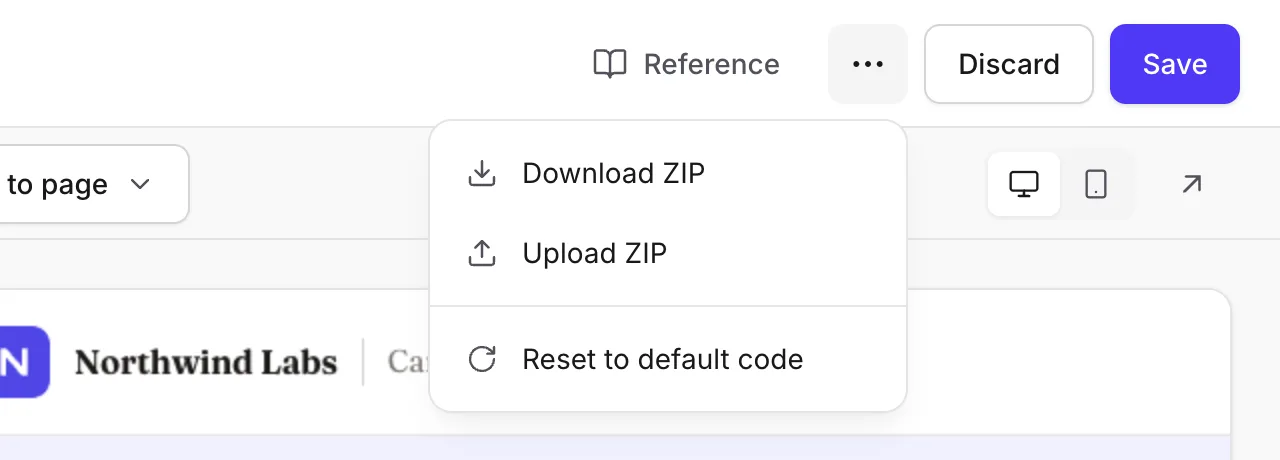
Changed your mind? The More actions menu (the three dots next to Discard) has Reset to default code, which puts back Emploist’s default design. As with any change, nothing happens on your careers page until you save.
Option 2: Let an AI assistant make the changes
For bigger changes, like a new section or a different layout, it’s often easier to describe what you want and let an AI assistant write the code. We’ll use Claude, but any assistant that can read and send back files works in much the same way.
Download your code
On the Design tab, click Download ZIP. You’ll get a file called careers-page.zip with:
- Your six files, with any changes you’ve saved.
- A guide,
README.md, which explains the rules for careers pages and every placeholder you can use. This is what helps an AI assistant get the code right on the first try. - A preview kit (
preview.mjsandcompany.json) for previewing the page on your computer. It’s optional, and we cover it at the end.
You don’t need to unzip it: Claude can read the ZIP as it is.
Ask for the changes
Open claude.ai, start a new chat, and attach careers-page.zip with the + button. Then describe what you’d like in plain words, as you would to a designer. Here’s what we asked:
Here’s the code for our careers page on Emploist. Please make the jobs page feel warmer and more welcoming: a bigger intro with a button to the open roles, and a “Why join us” section with a few benefits (remote-friendly, learning budget, 30 days off, team offsites). Follow README.md and send me back a ZIP I can upload.
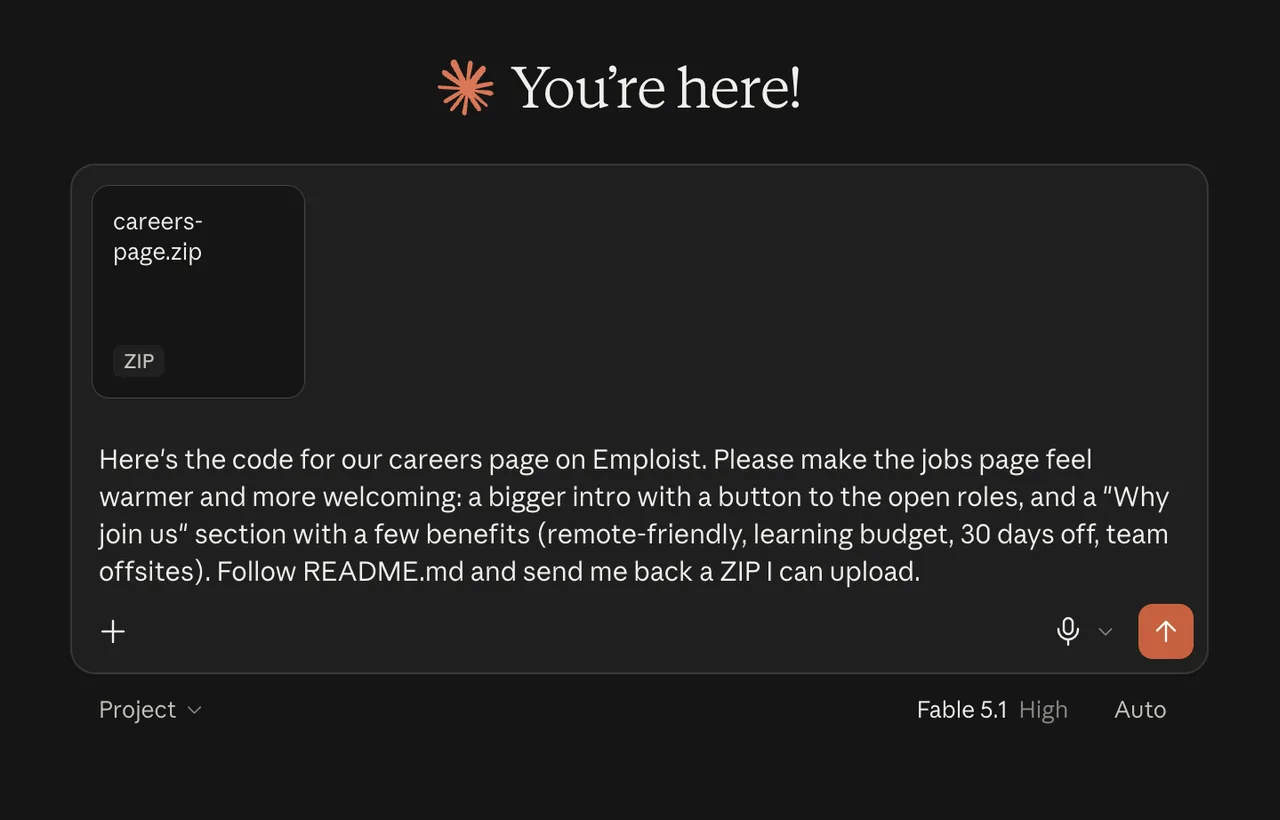
Asking it to follow README.md and to send back a ZIP saves a few rounds of back and forth.
Get the updated code
Claude took about four minutes. It read the guide and the code, made the changes, and then checked its own work: it previewed the page at desktop and phone sizes with the preview kit, and ran the same check Emploist runs before saving. Then it sent back a new careers-page.zip, with a summary of what it changed:
- A bigger, warmer intro, with a new headline, a welcoming line, and a See open roles button that jumps down to the list.
- A “Why join us” section with four cards: remote-friendly, learning budget, 30 days off, and team offsites.
- Small touches to the open roles, like a short introduction above the list.
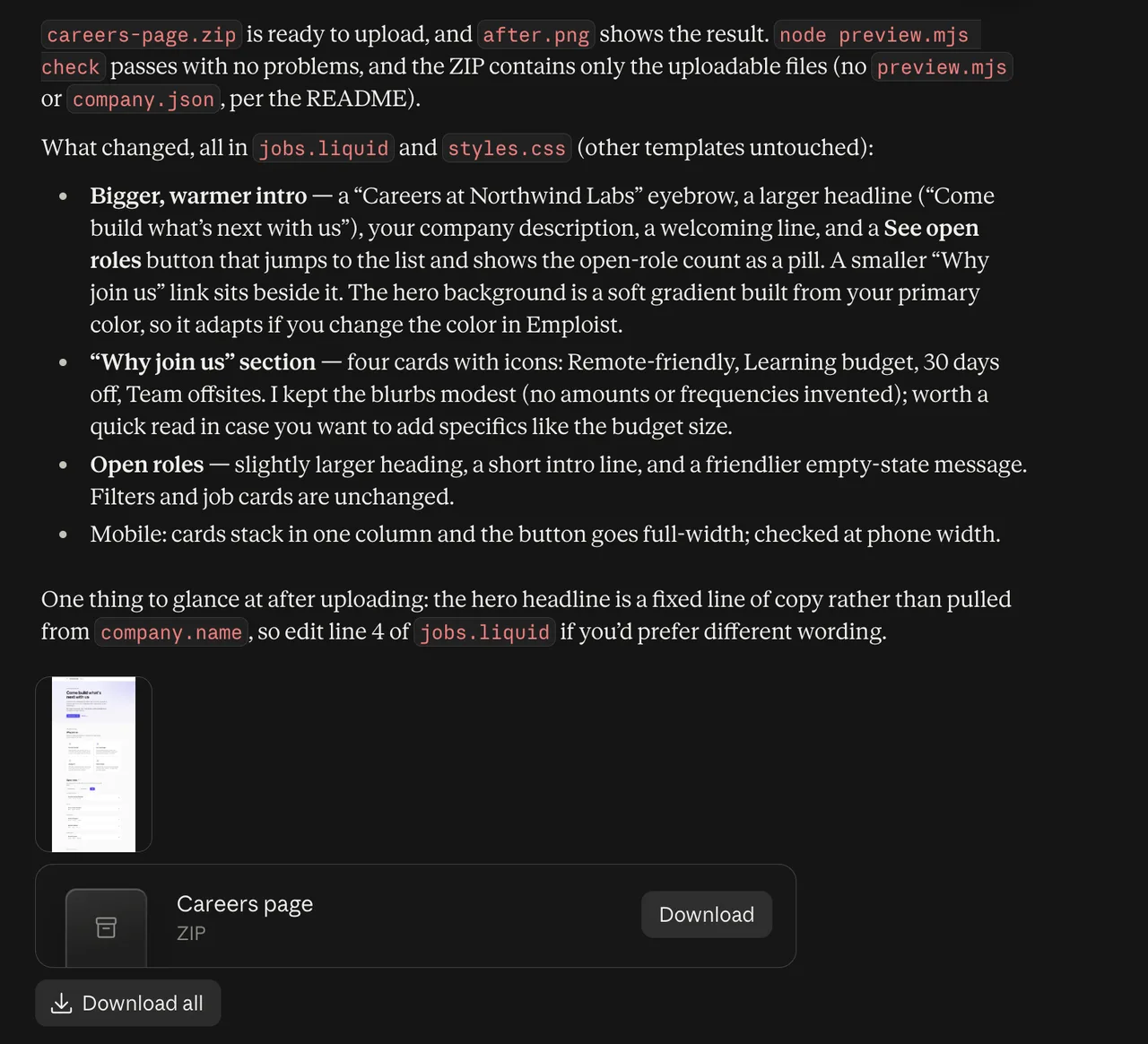
Read the summary before you upload. Here, Claude mentioned that it replaced our new headline with its own, “Come build what’s next with us”, and told us which line to edit to change it. It also kept the benefits general, without making up details like the size of the learning budget, so we could add our own.
If the result isn’t quite right, keep the conversation going: “make the button green”, “add a benefit about health insurance”, or “make the intro shorter”. Ask for the updated ZIP when you’re done.
Upload it to Emploist
Back on the Design tab, click Upload ZIP and choose the ZIP from Claude. Emploist opens the editor with the new code loaded, but not saved yet, so you can look before anything changes for candidates.
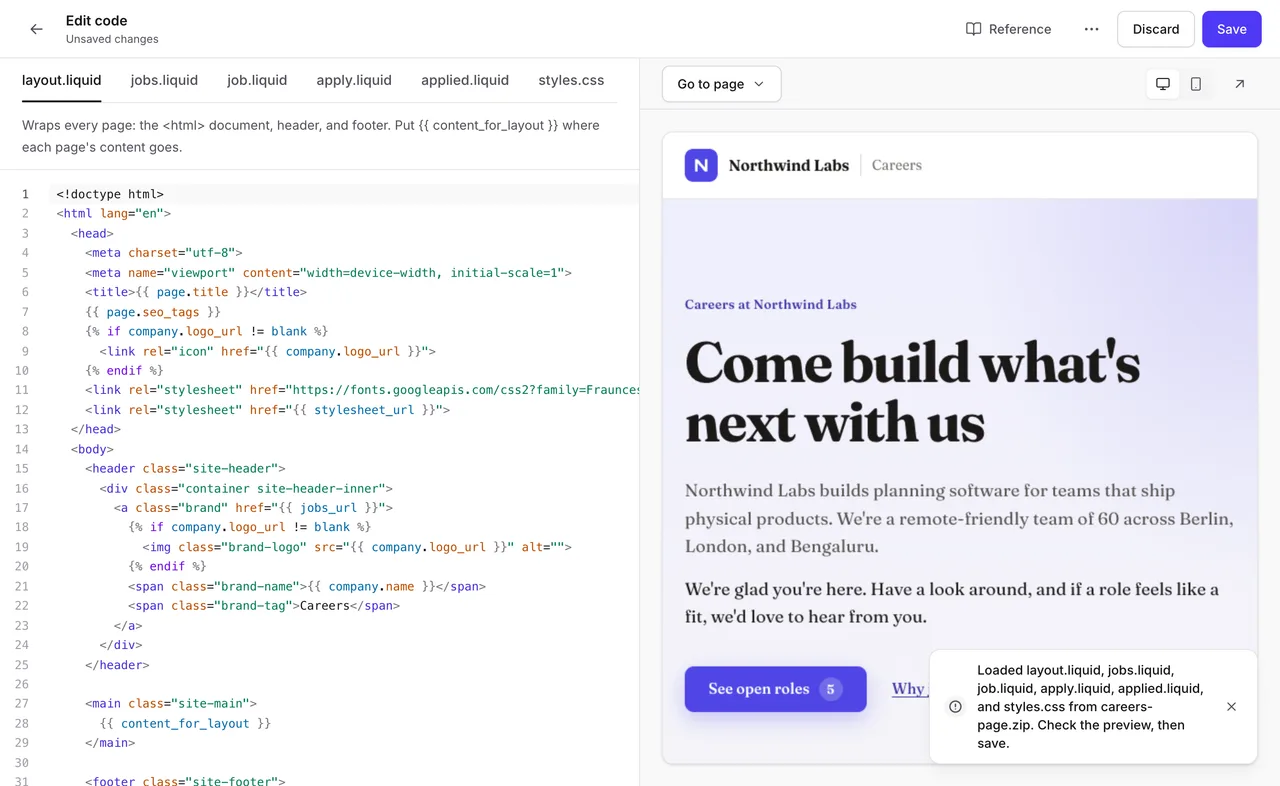
Use Go to page and the phone icon to check every page. If something isn’t right, fix it in the editor or ask Claude again. When it all looks good, click Save.
The result
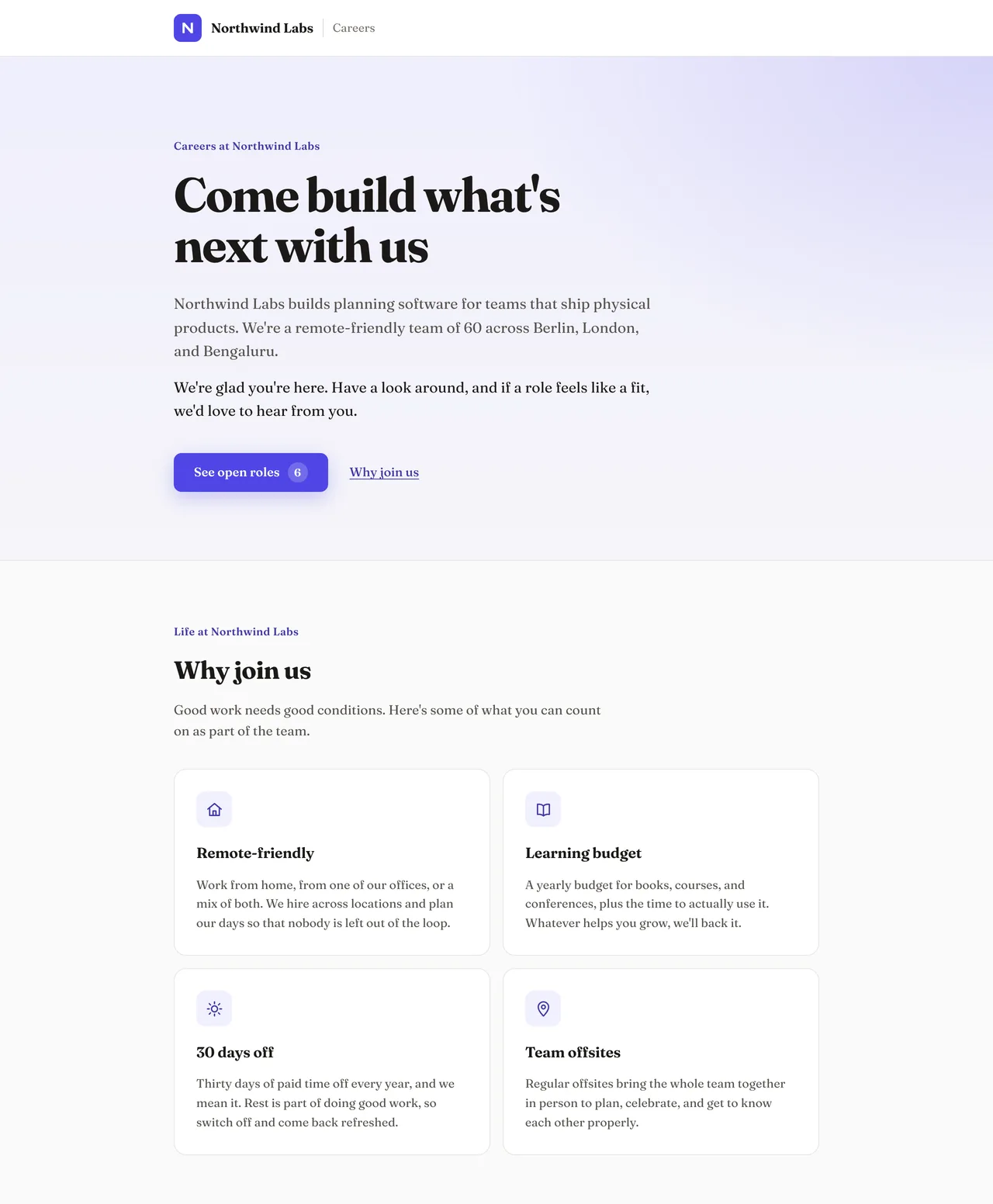
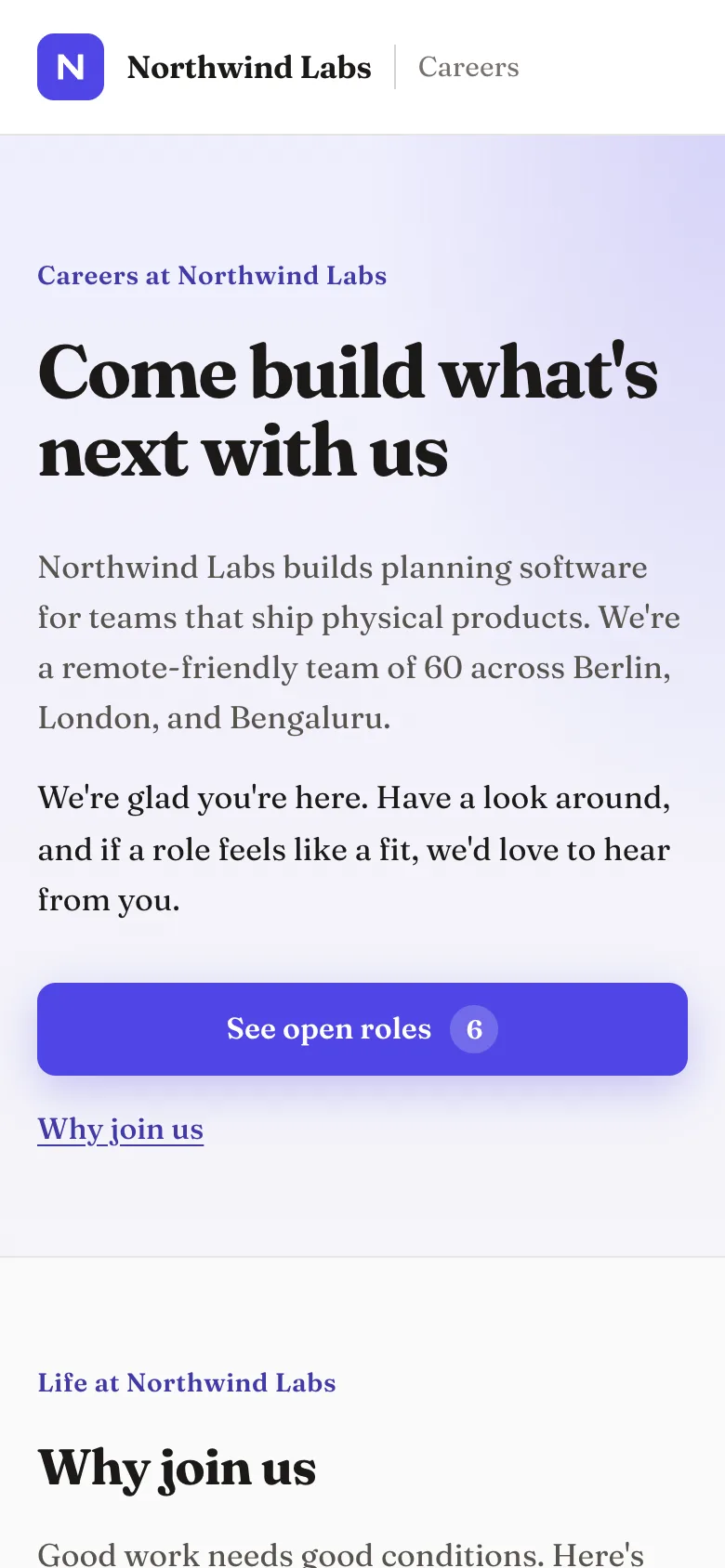
Here’s Northwind Labs’ careers page after both changes: the Fraunces font from the editor, and Claude’s redesign. Compare it with the default design at the top of this guide.
And on a phone:
Preview on your computer (optional)
If you’d like to try changes on your computer before uploading them, the ZIP’s preview kit shows your careers page with sample jobs, just like Emploist’s preview. It needs Node.js 22 or newer.
- Unzip
careers-page.zip. - Open a terminal in the unzipped folder and run
node preview.mjs. - Open
http://localhost:4321in your browser, and reload it after each change.
To check your code for problems the same way Emploist does before saving, run node preview.mjs check. If you use an AI assistant that works with files on your computer, such as Claude Code, you can ask it to run these for you.
Good to know
- Only admins can edit the code. Other team members can see the Design tab, but not change it.
- JavaScript doesn’t run on careers pages. This keeps your page and your candidates safe. Everything in this guide works without it.
- Images, fonts, and stylesheets can load from other websites, as long as their addresses start with
https://. That’s how Google Fonts works. - Application forms keep working however you change the design, so applications keep landing in each job’s inbox.
Want to see your own careers page? Start your free trial, and it’s ready the moment you set up your company. Then make it yours.